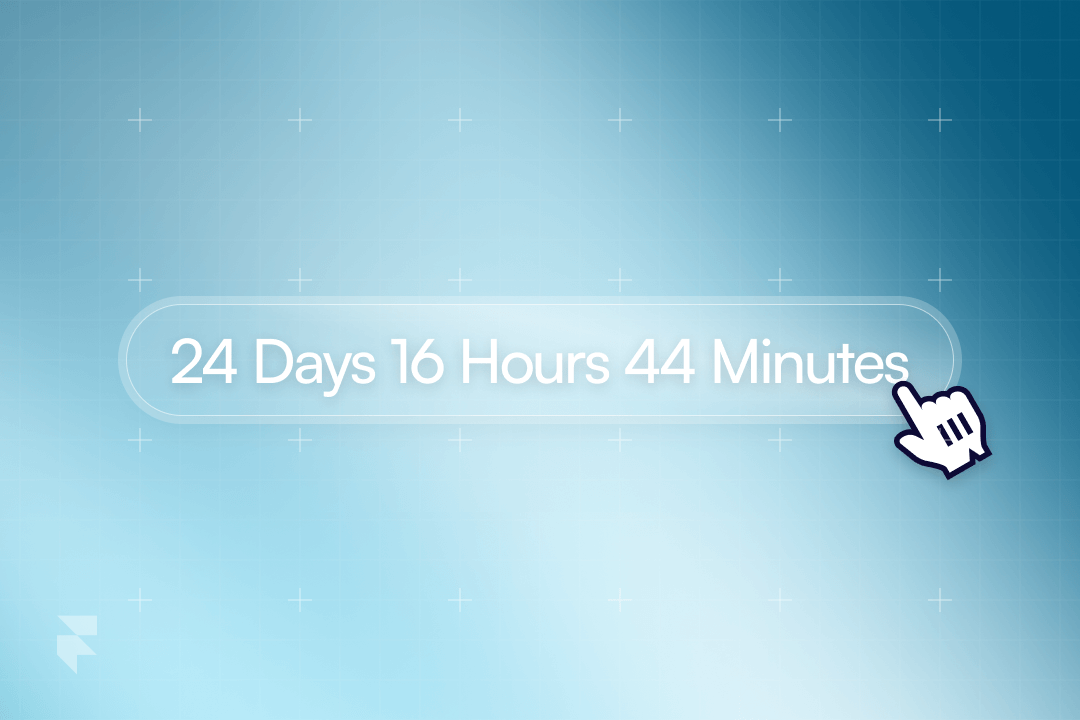
Add a countdown timer to Framer and display something when the date is reached ✨
Looking to create a live countdown on your Framer site? Want full control over its functionality and even the ability to trigger an action when the countdown ends? This short article will show you how to easily implement a dynamic countdown timer that delivers a visually appealing and interactive experience for your users.
How does it work?
1. Add the component to your project
To get started, simply add the countdown component to your project.
https://framer.com/m/Countdown-rrlY.js@qioiIhXiGx0CqfBdybLZAlternatively, you can remix our project and copy the component from the remix.
2. Customise the styles and layout
Create a countdown that perfectly matches your project’s aesthetic and functionality. With Framer’s intuitive UI, you can fully customize every aspect of the countdown. Adjust the layout, colors, typography, and more to align with your design vision.
3. Display something when the date is reached
Once the specified date is reached, you can replace the countdown element with something new. For example, display a message like “Our Sale is Over”.
Publish and enjoy
That’s it, just publish the project and your countdown will work perfectly on every load. Remember to adjust any settings or configurations as needed to match your specific countdown requirements. Enjoy the flexibility and control provided by this countdown component in your Framer project!
Did you find this helpful? 💕
Your support means the world to us! In just 10 seconds, you can make a big difference:
- Join our community Discord Channel.
- Download our Free Webflow Booster App.
- Share what you built with us on Twitter! We re-post to thousands!
Thank you for being awesome! 🌟
Leave a Reply